Using Beeline
This is the heart of the connector: going from "I want to travel" to a confirmed booking, all in conversation. Hotels and flights follow the same shape — search, choose, add your details, pay, confirm — and are always booked separately, each with its own payment.
1. Search
Just describe what you want. Claude passes it to Beeline and shows you results.
Example prompts:
Find me a 4-star hotel in Lisbon for two nights next month.Search hotels in central Paris for 2 adults, 12–14 August.Show me flights from London to Barcelona on 3 September, returning the 7th, for 2 adults and a 1-year-old.
If you haven't given enough detail yet, Beeline opens a short search form right in the chat — pre-filled with anything you already said — so you can fill in the destination, dates, and travellers and submit. You don't have to spell out every detail in text.
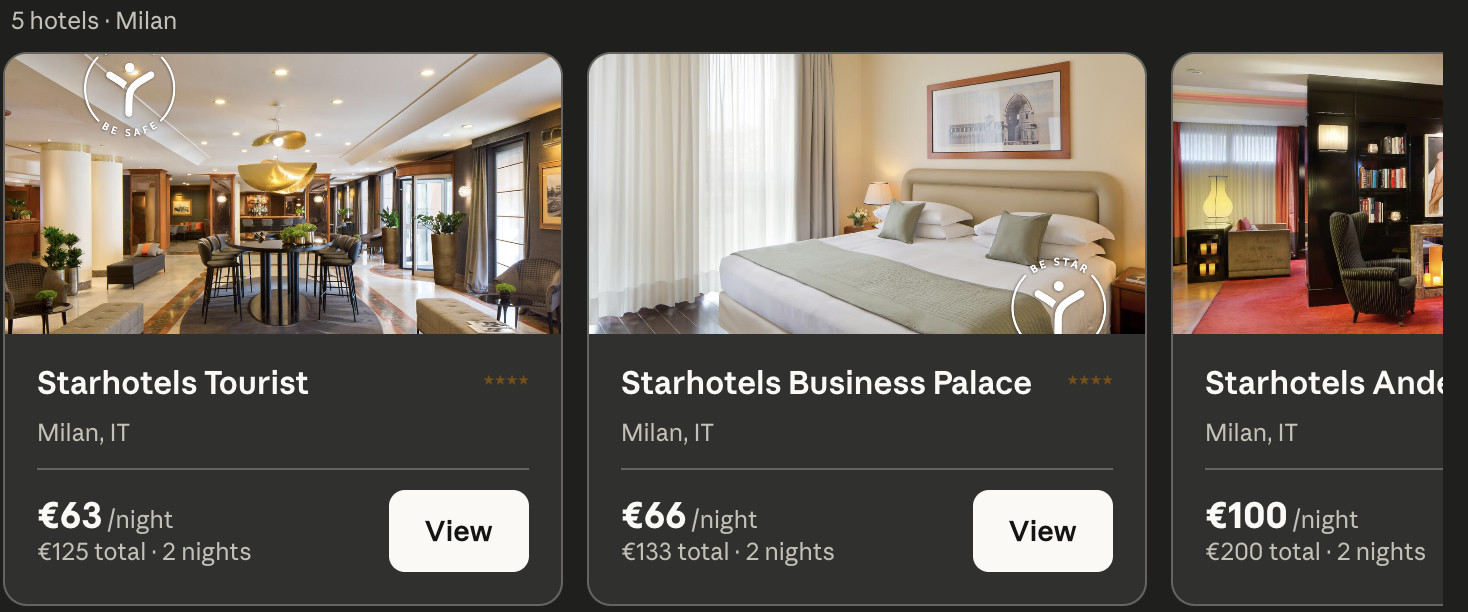
Results come back as option cards you can scan: hotels are sorted with the cheapest first; flights show the airline (for example, easyJet or Ryanair), route, times, stops, and total price for your whole party.
A note on flight passengers
When you search flights, tell Beeline the ages of any children and infants — some airlines price by age, and an accurate age means a child who turns a certain age by the travel date is handled correctly. Beeline won't let you build a passenger mix no airline will sell (for example, more infants than adults, or a child with no adult), and it caps a single booking at nine passengers, telling you clearly if your party is too large.
2. Compare and choose
Ask Claude to dig into any option:
Tell me more about the second hotel.What rooms does that one have with breakfast included?What are the fare options on the easyJet flight?
Beeline shows the detail view — for hotels, the rooms, amenities, policies, and photos with live total pricing; for flights, the fare classes and what each includes. Pick the room or fare you want and tell Claude.
3. Add your details
Before booking, Beeline collects who's travelling through a details form in the chat.
- Hotels: only the lead guest's details are needed, no matter how many people are in the party.
- Flights: each passenger's details are collected, plus a contact.
Fill in the form and submit — no need to type it all out as a message.
4. Flight extras (bags and seats)
For flights, after you reserve, Beeline offers extras: checked bags and seat selection across all your flights. Just say what you'd like:
Add a 20kg checked bag and a window seat.
A few things worth knowing:
- Some bags must apply to every leg of the journey — Beeline handles that so you're not covered on only one flight.
- Seats are labelled in plain terms ("Extra legroom", "Standard").
- A lap infant travels on an adult's lap and doesn't get a separate seat.
5. Reserve and review
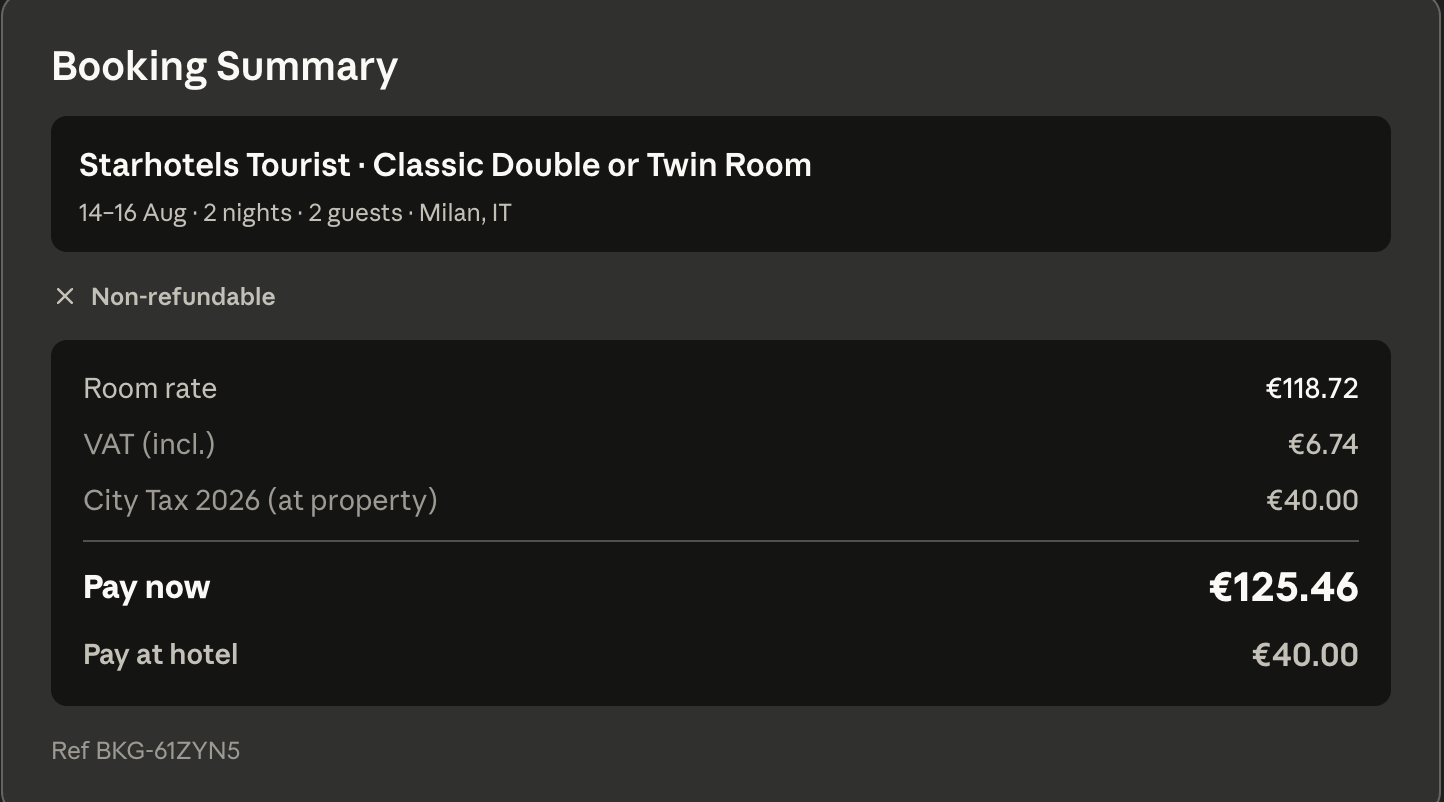
When you confirm your choice, Beeline reserves it and shows a booking summary
card with everything laid out — what you're booking, for whom, and the total
price. At this point the booking exists but is not yet confirmed: its status
is HELD, and it expires after an hour if unpaid. Nothing is charged and the
room or flight isn't confirmed until you
pay on Beeline's securely hosted checkout page, not inside the chat (see
Pay securely below). A booking can move through other statuses
too — see Managing your bookings for the full list.
6. Pay securely
Beeline is the merchant of record for your booking: you pay Beeline for arranging it, and Beeline books the stay or flight with the hotel or airline. Beeline gives you a secure payment link. Payment is completed on Beeline's hosted checkout page — not inside the chat — so your card details are never handled in the conversation. Open the link, pay, and come back.
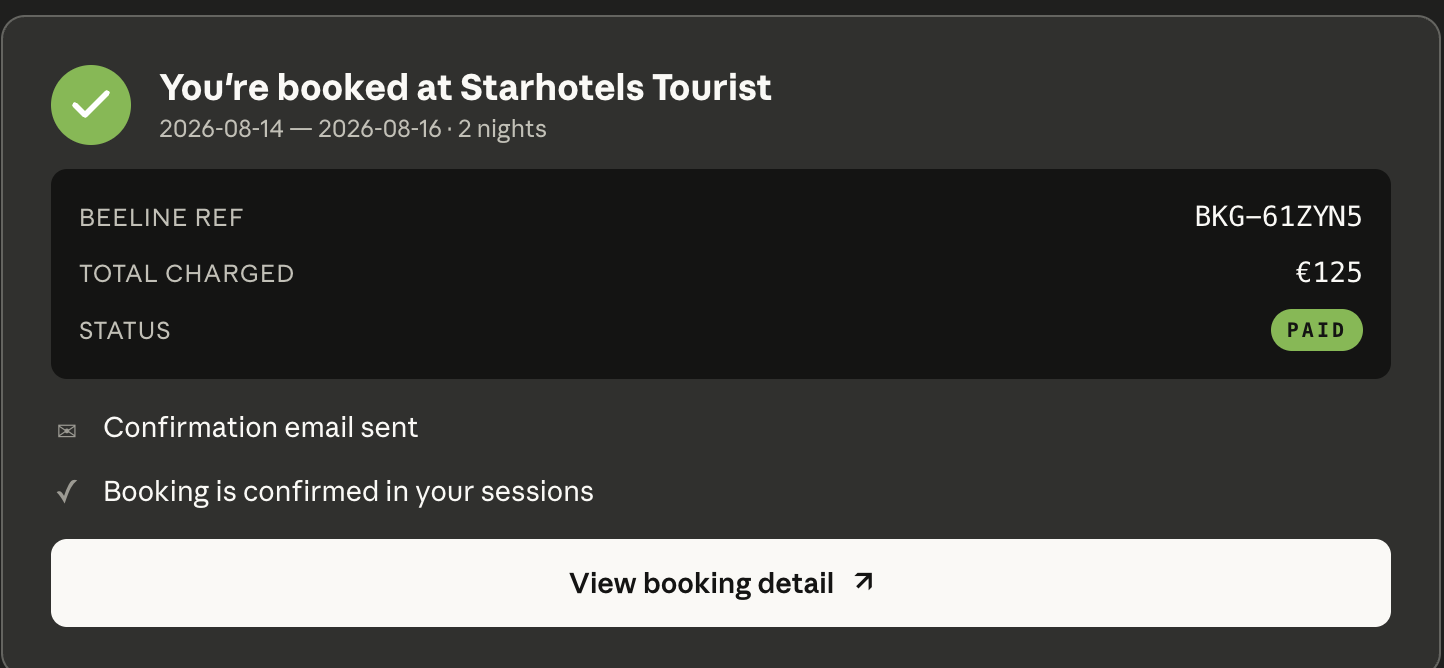
Once payment goes through, your booking is confirmed (status PAID) and
you'll get a confirmation email. Beeline shows a confirmation card in the
chat too.
Limitations / good to know
- Lead guest only for hotels. Whatever your party size, hotels need just the lead guest's details.
- Payment happens off-chat. You always complete payment on Beeline's secure checkout page via the link — never by entering card details in Claude.
- A booking is only confirmed after payment. Until you pay, it stays
HELDand nothing is charged; unpaid holds expire after an hour. - Hotels and flights are separate bookings, each paid for on its own.
- Lap infants travel on an adult's lap and don't get a separate seat.
- If a payment attempt fails, retry on the same link — see Troubleshooting.
To check on, or cancel, anything you've booked, see Managing your bookings.